
An art frame. Not a screensaver.
Your streaming box can already put a picture on the screen when nobody's watching. This is a different thing: a display that stays on, that looks like art rather than like a television, running a library you actually manage — the same one on every other Nimbus frame in the house.
Always on · your own photos and playlists · one account across every frame · any size screen
“Can't my TV already do this?”
Sort of — and it's a fair question, so here's the straight answer. Every streaming box has an ambient or screensaver mode, and some of them are genuinely nice. They're solving a different problem.
A screensaver
- Fills the gap until you use the TV — it's waiting, not displaying
- Times out, or drops back to a home screen with rows of apps
- Points at a photo album; there's nothing to schedule or arrange
- Runs on a glossy panel that reads as a switched-on television
- Each screen is its own island
An art frame
- On because it's meant to be on — that's the whole job
- No home screen, no inputs, no notifications, nothing to dismiss
- Real playlists you build, order and schedule
- On a matte panel rated to run all day, so it reads as artwork
- Every frame in the house on one account, sharing one library
Your art shouldn't be stuck to one screen.
Buy an art television and the art lives on that television — it can't move to the next room, and it stops when you replace the set. The Mizar works the other way round: the library is yours, and the display is a choice you can change.
What it is
- A small always-on device that sits behind your display
- Plugs in over HDMI — one power cord, one video cord
- Your own photos and art, in playlists you arrange
- Mosaics spanning several displays
- One Nimbus account for every frame you own
What it isn't
- Not a television — no tuner, no apps, no ads, no home screen
- Not a screensaver waiting for you to press a button
- Not tied to one panel — change the display in five years, keep everything
- Not a project — it arrives configured, not as a kit to assemble
What you'll need, and what we'd buy.
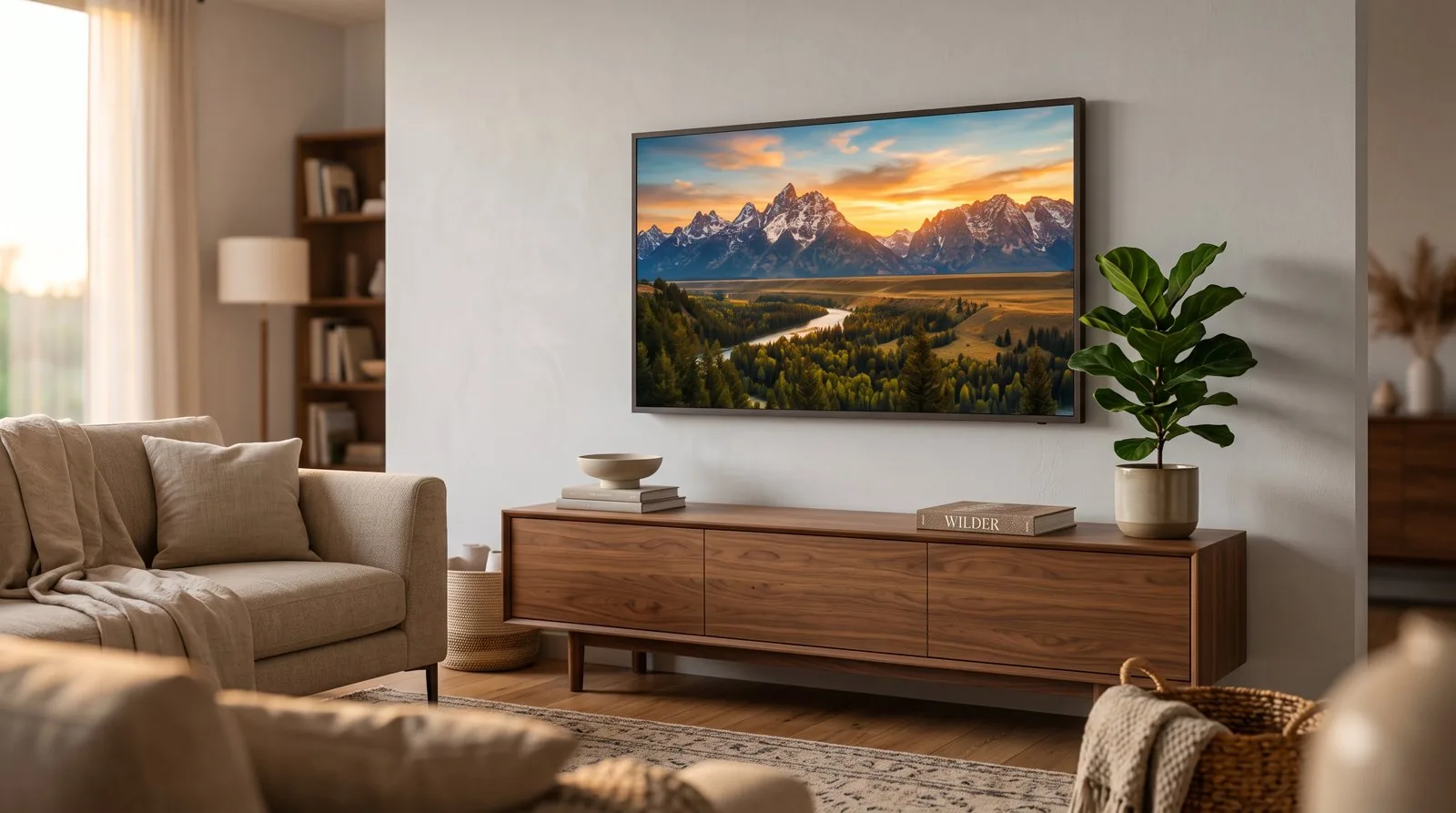
One Mizar drives a 4K display of almost any size — a 43″ on the wall or a 65″ centrepiece, the same device either way, as the video up top shows. But the display is what decides whether the result reads as art or as a television, so it's worth getting right. We recommend the Samsung QMC panels below — they're the ones we certify against, and the ones where every feature is guaranteed to work. Any other 4K screen will still show your art beautifully; a few extras like true backlight control may not be available, and if you bring your own we'll work with you to get the most out of it. We don't sell panels or mounts — you'll get them cheaper and faster from the usual places — but we tell you exactly what to buy.
Illustration
The display
Our reference panel is the Samsung QM43C — 43″, 4K, 500 nit, rated for 24/7 use, with an anti-glare matte finish. It's the panel we certify against and the one we have in hand. Around $626.
Model number to search for: LH43QMCEBGCXGO
The panels we'd buy, by size
- 43″ — Samsung QM43C, around $626. Our reference panel and the size that suits most rooms — the one we certify against and have in hand. Model LH43QMCEBGCXGO.
- 55″ — Samsung QM55C. The same panel one size up, for a larger wall. Check current retail.
- 65″ — Samsung QM65C. A living-room centrepiece for a bigger space. Check current retail.
- Brighter, window-lit rooms — Samsung QH43C, roughly $920–$1,050. The 700-nit version of the 43″; otherwise identical. Only worth it next to a window.
Every one is Samsung's QMC commercial series — 4K, 500 nit, rated for 24/7 use, matte anti-glare, centred VESA. The line runs from 32″ up to 98″; 43″, 55″ and 65″ are the realistic choices for a home wall. Any 4K display with an HDMI input will work — but these are the ones we recommend and certify every feature against.
QB43C — cheaper, but rated for under 16 hours a day. Running art on it around the clock can void the warranty.
QM32C — despite the family name it's 1080p, not 4K. Samsung's commercial line doesn't reach 4K until 43″.
- Gloss. Almost every consumer TV has a glossy screen. It mirrors the room, and a reflection is the single biggest thing that stops a picture reading as a painting.
- The set still looks like a set. Wide glossy bezels, a badge, a standby light and a soundbar underneath all say “television” no matter what's on screen.
- It'll interrupt. Smart-TV home screens, update prompts and “are you still watching?” overlays turn up in front of the art at some point.
- It'll fight you. Ambient light sensors, eco dimming and motion smoothing are tuned for film and television, and they will quietly adjust artwork you wanted left alone.
Power
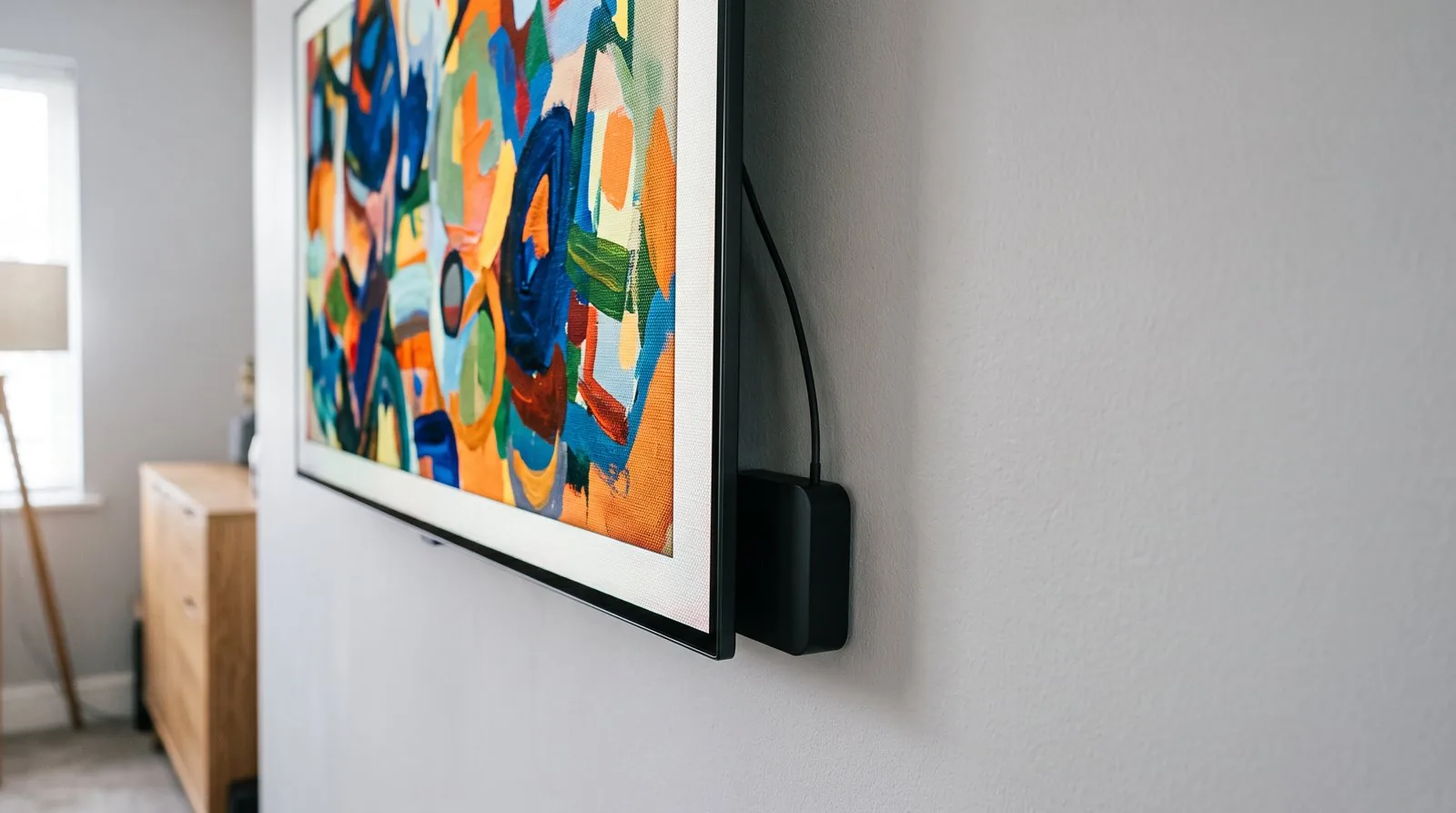
The Mizar runs from its own USB-C power supply, 5.1V / 3A, into a wall outlet. That's the second cord behind the panel — power and HDMI, both invisible once it's mounted.
Illustration
Mounting
A standard VESA wall mount, sized for your panel. Commercial displays like the QMC series use a centred VESA pattern — check the mount lists your screen size, and the panel's manual for its exact pattern.
Optional: a control cable
Out of the box, the Mizar dims the picture itself. That looks right, but it doesn't turn the backlight down — so a dark image in a dark room still glows a little.
An RS-232 control cable fixes that properly: real backlight control, plus the panel reporting back its own state. It's a 9-pin D-Sub to 3.5 mm stereo cable, and it needs one setting changed on the display.
Nice to have, not required. Most people never fit one.
Commercial displays ask a few questions on first boot.
This is the one genuinely fiddly part, and we'd rather tell you now than let it surprise you. It takes about two minutes and you only do it once.
The first-boot setup, step by step
- The panel opens an installer-style wizard: language, then network.
- Set Installation Type to Manual.
- Choose your rotation — portrait or landscape, whichever way you're hanging it.
- Set Auto Power Off to Off, so the display doesn't shut itself down.
- Set Primary Source to HDMI 1, and connect the Mizar to that input.
- Some menus stay greyed out until the source is set to HDMI — that's normal, not a fault.
- You can re-run the whole thing later from Menu → System → Start Setup.
Before you go shopping.
Do I have to buy the Samsung you recommend?
No. Any 4K display with an HDMI input will work. The QM43C is simply the panel we test against and keep in the office, so it's the one we can vouch for without hedging.
Can I use a normal television?
Yes, and it will work. Two things to know: most consumer TVs are glossy, which reads as a screen rather than as art, and they aren't rated to run all day the way a commercial panel is.
Why don't you just sell me the display?
Because you'll do better buying it yourself. Panels are a commodity, shipping a 43″ screen is expensive and easy to damage, and prices move constantly. We'd rather tell you exactly what to get and let you shop for it.
Can I run more than one?
Yes — one Mizar per display, all in the same Nimbus account, and they can share a Mosaic across the wall just like our own frames do.
What does it cost to run?
Service is handled through your Nimbus account alongside any other frames you own. See the plans page for current pricing.
The Mizar is coming soon.
If you're planning a wall, the display recommendations above won't change — you can buy the panel and mount now and be ready.